A sluggish laptop disrupts workflow, slows down daily productivity, and causes unnecessary frustration. Learning how to Speed Up Slow Laptops does not require purchasing new hardware or reformatting your entire hard drive. In most cases, system lag is caused by resource-hogging background startup programs, fragmented cache files, thermal throttling, or insufficient storage capacity.
By implementing systematic system maintenance across Windows or macOS, you can reclaim valuable system memory, optimize CPU utilization, and restore responsive speeds across your machine.
Key Takeaways
- Control Startup Items: Prevent background apps from launching automatically during boot to dramatically decrease startup times and free up RAM.
- Maintain Free Disk Space: Keep at least 15% to 20% of your primary drive unallocated to allow the OS to manage virtual memory swap files efficiently.
- Identify Memory Hogs: Use Task Manager (Windows) or Activity Monitor (macOS) to isolate and terminate rogue background processes.
- Manage Thermal Throttling: Clear cooling vents of dust and keep firmware drivers updated to prevent hardware throttling under load.
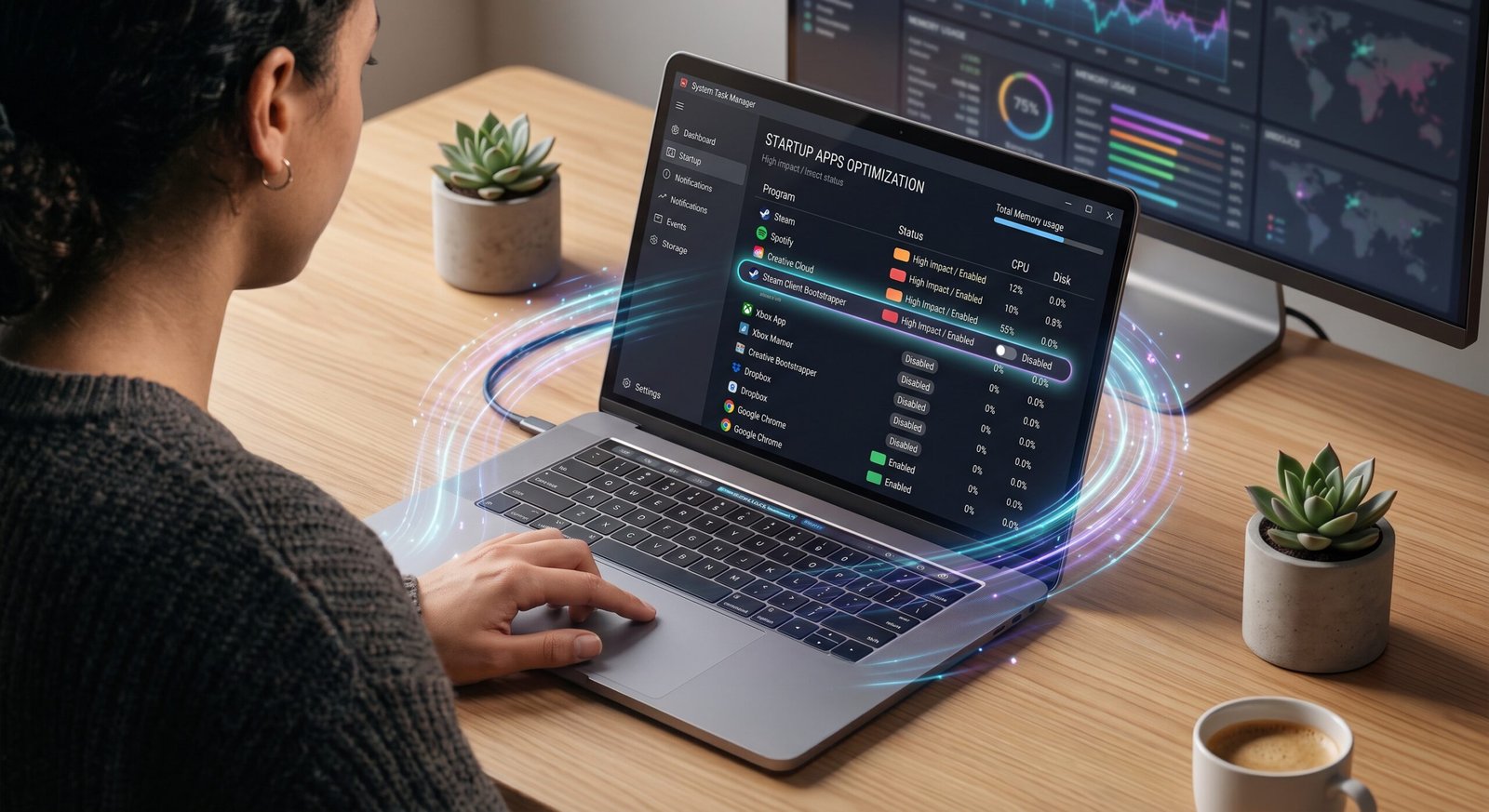
1. Eliminate Startup Bloatware and Unnecessary Background Tasks
When too many applications launch on startup, your system consumes significant CPU cycles and RAM before you even launch a browser.
On Windows 11 / 10
- Open Task Manager (
Ctrl + Shift + Esc) and navigate to the Startup Apps tab. - Identify high-impact background programs (such as game launchers, cloud updaters, and secondary messengers) and select Disable.
On macOS
- Open System Settings > General > Login Items.
- Remove non-essential utilities from the “Open at Login” list and toggle off background permissions for applications you rarely use.
2. Reclaim Storage and Clear System Cache
Operating systems rely heavily on free storage space for temporary paging files and background caching. When storage drops below critical thresholds, system lag increases rapidly.
| Cleanup Task | Windows Action | macOS Action | Performance Benefit |
| System Junk & Cache | Run Storage Sense / Disk Cleanup | Check System Data & empty Caches folder | Frees up critical virtual memory buffer |
| Temporary Files | Purge %temp% directory | Clear ~/Library/Caches | Reduces file-system indexing overhead |
| Browser Bloat | Clear hardware-accelerated cache & extensions | Reset Safari/Chrome extension libraries | Prevents browser tab stutter and high RAM spikes |
| Unused Software | Uninstall via “Installed Apps” | Move dormant apps to Trash & empty | Reclaims solid-state drive (SSD) storage |
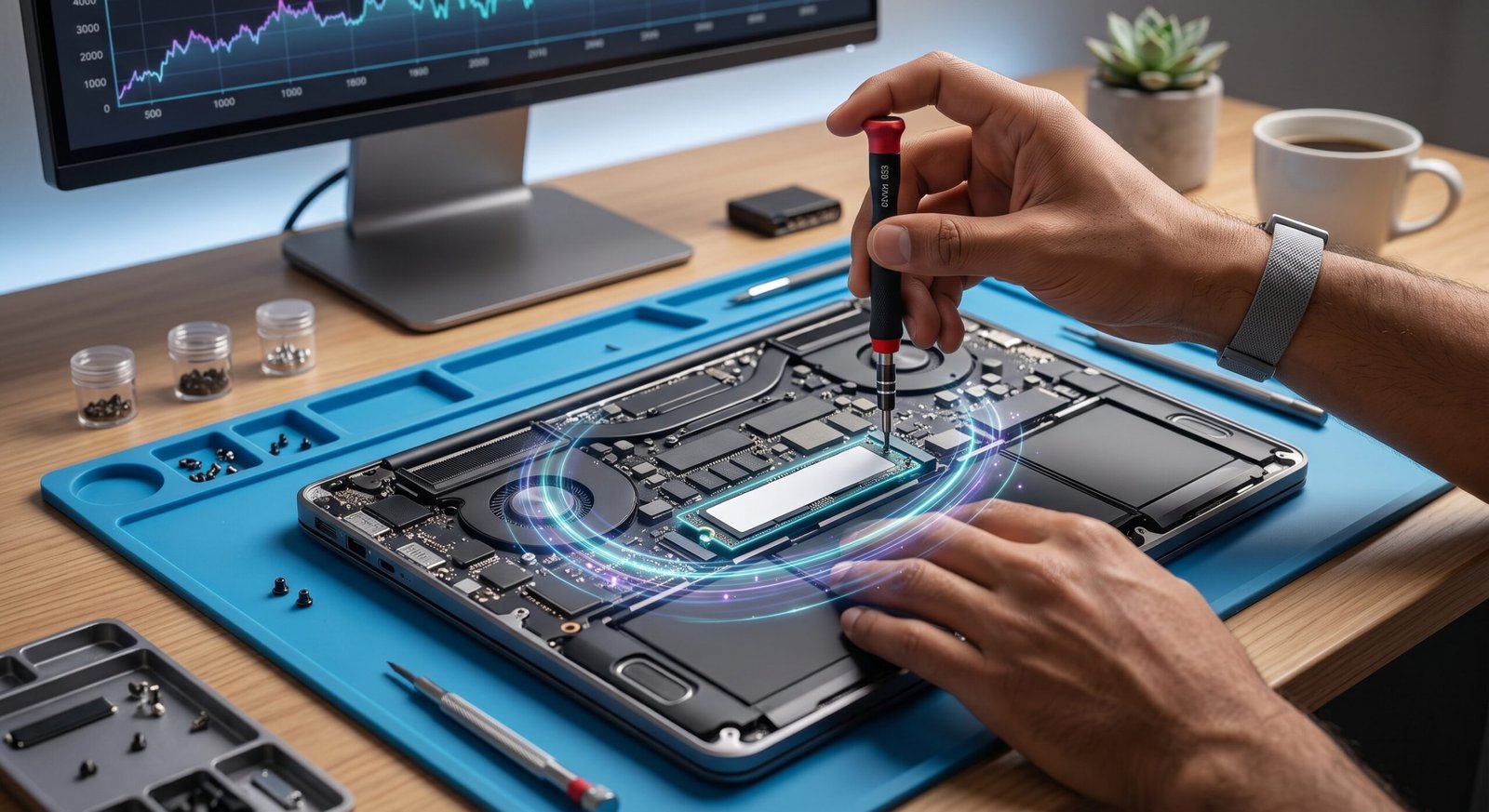
3. Manage Heat, Thermal Throttling, and Hardware Health
Modern laptops automatically reduce processor clock speeds (thermal throttling) to protect sensitive internal chips when operating temperatures rise above safe thresholds.
Hardware and Physical Maintenance
- Elevate the Chassis: Use an ergonomic laptop stand or elevated pad to maintain airflow to bottom intake vents.
- Clean Dust Accumulation: Use compressed air to carefully dislodge dust from side exhaust vents and fan grilles every few months.
- Audit Battery Performance: Degraded lithium-ion batteries can cause power-delivery throttling. Check battery cycle counts in macOS System Information or generate a Windows battery report (
powercfg /batteryreport).
4. Reset Corrupted OS Files and Update Drivers
Outdated drivers and corrupted system components can create silent background errors that constantly tax hardware.
- Update Display and Chipset Drivers: Regularly check Windows Update or use your manufacturer’s diagnostic utility (Dell Command, Lenovo Vantage, HP Support) to patch low-level drivers.
- Run System File Checker (Windows): Open Command Prompt as Administrator and run
sfc /scannowto detect and repair damaged operating system files. - Keep macOS Updated: Install incremental macOS point updates to resolve known memory leaks and kernel scheduling bugs.
Frequently Asked Questions
Why is my laptop running slow all of a sudden?
Sudden performance drops are usually caused by a rogue background process consuming 100% of CPU/RAM, a pending OS update indexing files, low SSD storage, or dust blocking the cooling fans.
Does adding more RAM fix slow laptop performance?
If your laptop frequently runs at 85%+ RAM utilization in Task Manager or Activity Monitor, upgrading RAM provides an immediate speed boost. However, if your CPU or storage is the bottleneck, software optimization yields better results.
How often should I restart my laptop?
Restarting your laptop 1 to 2 times per week clears volatile RAM caches, stops frozen background tasks, and completes pending system updates.
Taking the time to fix slow laptop performance through structured startup management, disk decluttering, and thermal care restores your device’s speed without expensive repairs. Implement these simple system audits today to keep your Windows PC or MacBook running smoothly and efficiently.
1 thought on “Speed Up Slow Laptops: Simple Guide for Win & Mac”