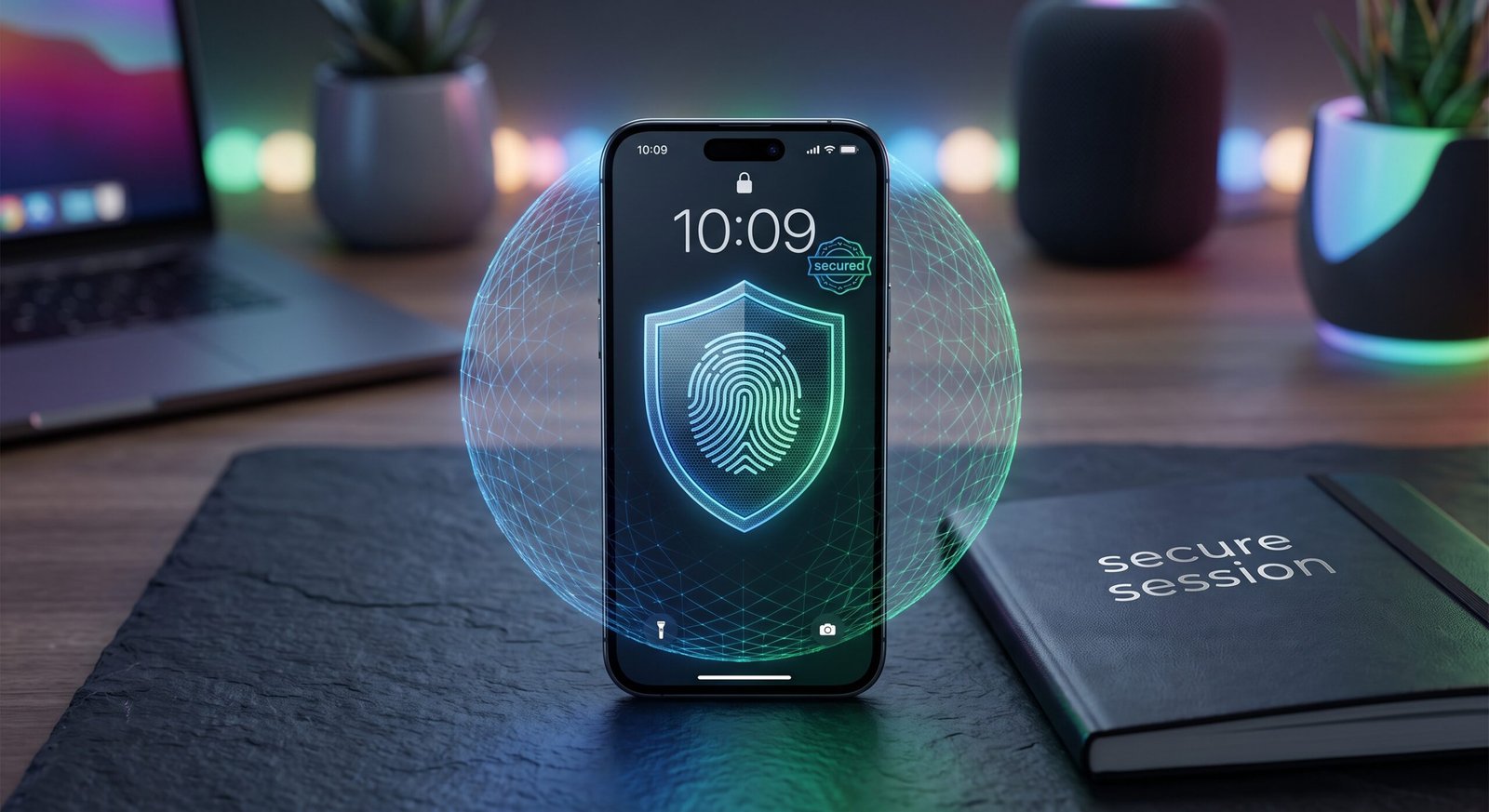
Modern smartphones hold our most sensitive assets, including financial accounts, private conversations, location histories, and confidential work credentials. Implementing essential smartphone security does not require advanced technical expertise; it simply requires configuring a handful of built-in settings that dramatically reduce your exposure to data breaches, malware, and physical theft.
Taking 10 minutes to audit your device’s security perimeter ensures that personal data remains encrypted, private, and inaccessible to unauthorized parties.
Key Takeaways
- Upgrade Screen Locks: Replace 4-digit PINs with complex alphanumeric passcodes or robust biometric authentication (Face ID / Fingerprint).
- Audit App Permissions: Restrict background access to location, camera, microphone, and contacts on a “While Using” basis.
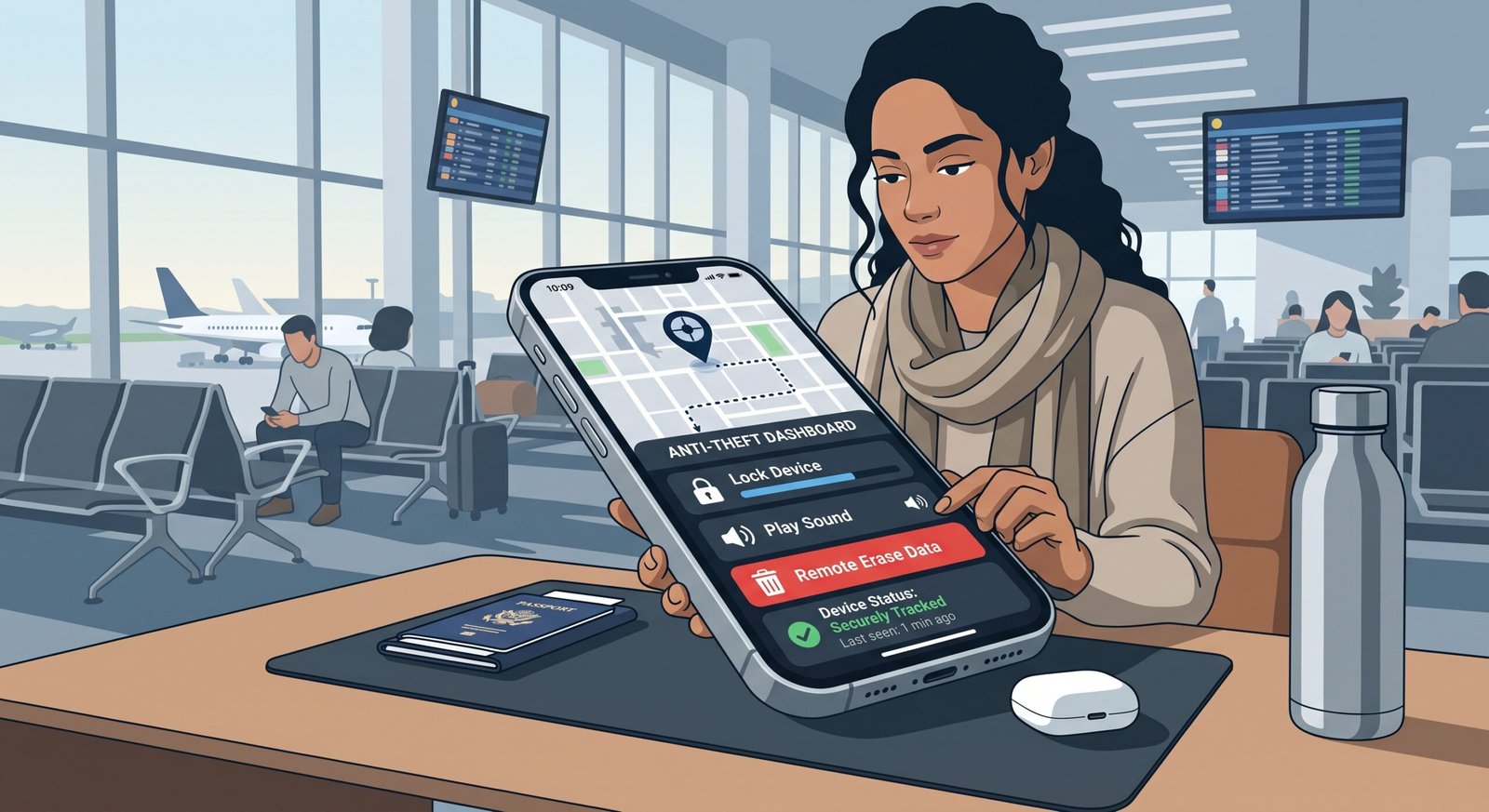
- Enable Remote Wipe & Tracking: Activate Apple’s Find My or Google’s Find Hub to lock or erase devices remotely if lost or stolen.
- Automate System Updates: Keep OS firmware and security patches updated to close zero-day vulnerabilities immediately.
1. Strengthen Device Entry and Biometric Controls
The first line of defense in essential smartphone security is preventing direct physical access to your device.
- Transition to 6+ Digit PINs or Alphanumeric Passcodes: Simple 4-digit PINs offer only 10,000 combinations, making them susceptible to shoulder surfing and automated bypass tools.
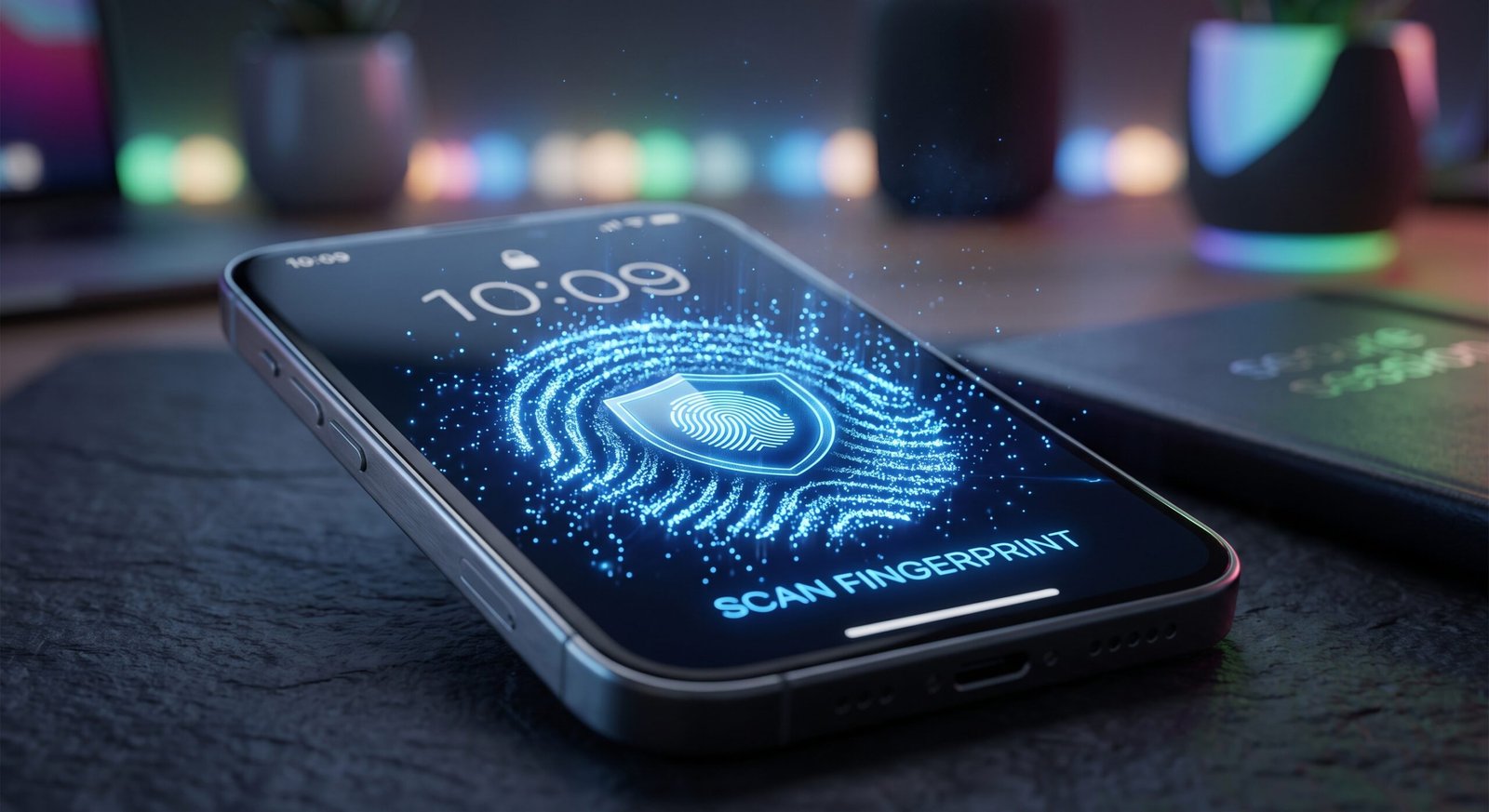
- Configure Biometric Safeguards: Enable Face ID or ultrasonic fingerprint recognition, and ensure “Require Attention” (on iOS) is active so the device only unlocks when your eyes are open.
- Limit Lock Screen Access: Disable lock screen access to notification previews, voice assistants (Siri/Google Assistant), and the Control Center to prevent unauthorized actions without unlocking.
2. Lock Down Privacy and App Permissions
Many applications request broad access to hardware and personal data that they do not strictly need to operate.
| Permission Type | Recommended Setting | Security Benefit |
| Precise Location | “While Using” or “Approximate” | Prevents background tracking and movement profiling |
| Microphone & Camera | “Ask Every Time” / “While Using” | Eliminates unauthorized audio or visual recording |
| Photo Library | “Selected Photos Only” | Protects personal photos from third-party app access |
| Local Network / Bluetooth | Off (unless actively needed) | Blocks cross-device tracking on shared public Wi-Fi |
3. Activate Remote Tracking, Backups, and Theft Protection
If your smartphone is misplaced or stolen, rapid response features prevent immediate data harvesting.
Remote Wipe and Tracking
- Apple Ecosystem: Ensure Find My iPhone and Find My Network are enabled, allowing the phone to be located even when offline or powered down.
- Android Ecosystem: Verify Find Hub (Find My Device) is active and linked to your primary Google account.
Stolen Device Protection
Modern operating systems now offer dedicated theft protections that mandate biometric verification—delaying passcode changes when the phone is away from familiar locations like home or work.
4. Secure Connectivity and Network Protocols
Unsecured wireless connections expose transmitted data to packet interception and man-in-the-middle attacks.
- Disable Automatic Wi-Fi Connections: Prevent your phone from automatically joining open, unencrypted public hotspots.
- Turn Off Bluetooth When Idle: Leaving Bluetooth discoverable in crowded transit hubs opens devices to short-range exploit vectors.
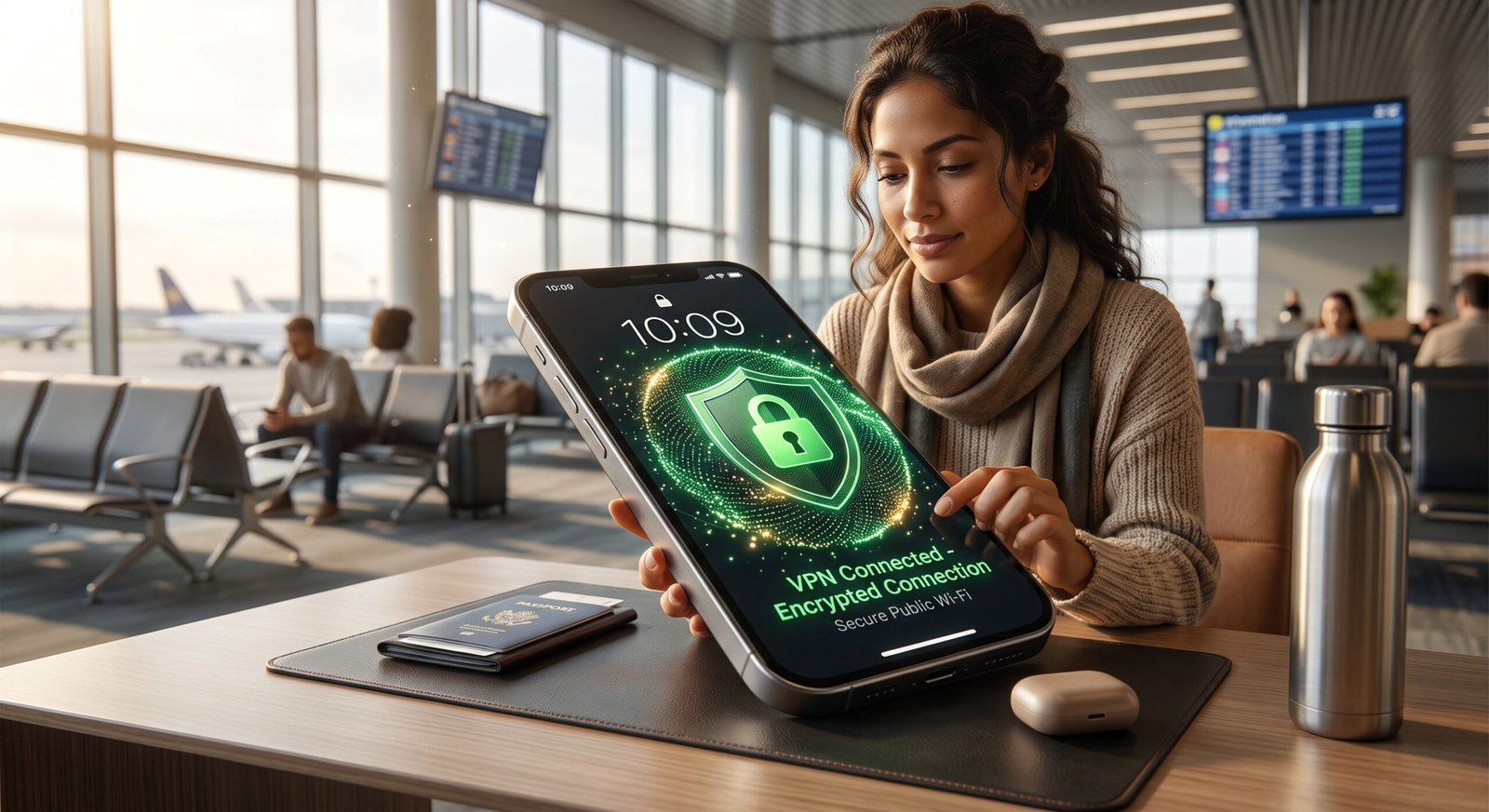
- Use Encrypted DNS / VPNs: Route sensitive mobile traffic through trusted encrypted tunnels when operating on airport or hotel networks.
Frequently Asked Questions
What is the single most important setting for essential smartphone security?
Enabling a complex screen passcode paired with two-factor authentication (2FA) across your primary Apple ID or Google account provides the highest level of baseline protection.
Do smartphones need third-party antivirus software?
On iOS and modern Android versions, dedicated third-party antivirus apps are generally unnecessary if you keep the OS updated and only download applications from the official App Store or Google Play Store.
How often should I audit my installed applications?
Perform an app audit every 3 to 6 months. Delete unused apps to remove dormant attack surfaces and revoke unnecessary permissions.
Implementing essential smartphone security requires only a few deliberate adjustments within your device settings. By strengthening lock codes, pruning invasive application permissions, and preparing remote recovery tools today, you ensure your private information remains fully protected against everyday digital threats.
1 thought on “Essential Smartphone Security: Protect Your Data Today”